This guide is for anyone buying Shadowrocket, getting it again on a new device, or checking a past purchase. Use the App Store product page to verify the app: check the App ID first, then confirm the full developer name and official icon, and finally review the purchase status and device compatibility. After purchase, check the app’s identity separately from your connection settings so a connection issue isn’t mistaken for buying the wrong app.
Verify the app: check these three details first
Shadowrocket is a paid client for Apple platforms and is available exclusively on the App Store. The name, title keywords, or rocket icon in search results can help you find an app, but none proves its identity on its own. Open each candidate’s product page before deciding whether it’s the right app.
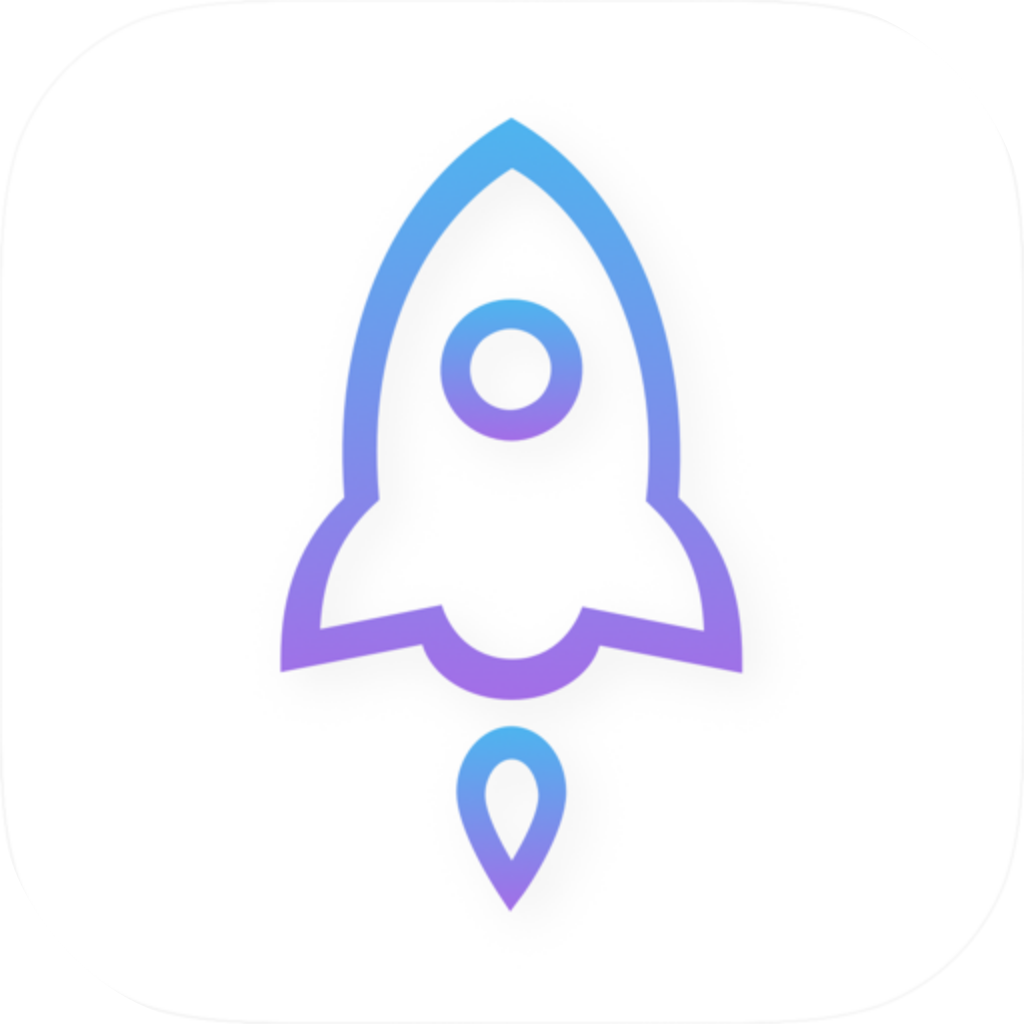
Check the developer, Shadow Launch Technology Limited; the rocket icon on a white background with a blue-violet outline; and App ID 932747118 in the product URL. All three should point to the same product page. Prices, search rankings, reviews, and descriptions can change, so don’t use them in place of these identifying details.
Check the product first, then confirm payment
Before confirming payment, return to the product page and check all three details above. If any don’t match, pause the purchase and find the intended product again.
How to verify an App Store listing before purchase
On iPhone or iPad, open the full product page first. Don’t confirm a purchase based only on a thumbnail in the search results. App Store labels may appear in different languages; the English names Search, Information, and Seller are included below to help you find the corresponding fields.
-
Search by name
Open the App Store, tap Search, and enter the exact name Shadowrocket. Open a candidate’s product page and check the title and developer link near the top instead of relying on its position in the results.
-
Check the developer
Review the developer details, then scroll to Information → Seller and verify Shadow Launch Technology Limited. If the name at the top is truncated, expand the relevant details to see the full name.
-
Check the icon
Compare the product page icon with the official icon below, checking its white background, blue-violet outline, and overall shape. A similar icon is only a clue; you still need to check the App ID.
-
Check the link
Use the product page’s share option to copy its link, then check whether the product path contains
id932747118. Don’t mistake a search results link or a number in promotional text for the product’s App ID. -
Confirm the purchase
Once all three details match, review Compatibility and the displayed price before confirming your purchase. Refer to the App Store page for device compatibility, system requirements, and purchase eligibility.
If the search results are difficult to distinguish, open the download guide to reach the designated App Store product page, then run the same checks. Search and the guide are just different ways to get there; the final check is always the intended product in the App Store.
Official icon and App ID: what each can tell you
Below is the official Shadowrocket icon used on this site. It’s for visual comparison, not an app interface screenshot. Check more than just whether it shows a rocket: compare the background, outline, and proportions. A similar-looking icon on a product page doesn’t mean the developer or App ID is the same.
The App ID identifies a specific listing in the store. The product link used on this site is shown below; id932747118 is the key detail to check. us is the storefront region in this URL, not a developer identifier, and prices may vary by region.
https://apps.apple.com/us/app/shadowrocket/id932747118| Field | What to check | Limitations |
|---|---|---|
| Product name | Shadowrocket | Use it to find the app; if the name is similar, check the other details too. |
| Developer and seller | Shadow Launch Technology Limited | Check the full name. Don’t use text in promotional images as a substitute for the App Store listing details. |
| Product link | id932747118 | Confirm it’s an App Store product page, not just text that happens to include the number. |
| Product icon | Rocket with a blue-violet outline on a white background | Use it as a visual cross-check alongside the developer and App ID. |
After copying the link, first check that the domain is apps.apple.com, then inspect the product path. Don’t skip the domain check just because the URL contains “Shadowrocket.” The name is a readable part of the URL; the numeric ID is the key to identifying the specific App Store listing.
Before paying: distinguish the app purchase, compatibility, and service
Shadowrocket’s one-time purchase covers use of the client. Buying the client does not include a service plan. Get subscriptions and nodes from your service provider; an App Store purchase record does not represent service-provider usage credit. This guide assumes you already have your own service provider and subscription.
- Price: Refer to the price and currency shown on the current App Store product page and in the final purchase confirmation. Don’t infer the amount charged from a search snippet.
- Primary devices: Shadowrocket is primarily used on iPhone and iPad. Refer to the App Store page for compatibility and purchase eligibility on Mac, Apple TV, and Apple Vision.
- System requirements: Check Compatibility on the product page. Refer to the App Store page for system requirements; don’t infer them from installation results on another device.
- Download again: First confirm which Apple Account is currently used for App Store purchases, then check your purchased apps. Check device sign-in and the account used for media purchases separately.
After purchase: check app identity and connection status separately
If a website won’t load after you’ve purchased the app, that alone doesn’t mean you have the wrong app. First verify the app using the purchase record and product page, then check whether Home has a valid configuration. Get subscriptions and nodes from your service provider. Importing a configuration, reaching a server, and matching a rule are separate checks.
Home, Config, and Settings can help you find configuration and app settings, but the interface layout itself doesn’t verify an App Store purchase. For users with a configured connection, the Global Routing selection affects how requests are handled. The options below are Shadowrocket’s own routing choices; the recommended option assumes you already have valid rules configured.
Config
RecommendedHandles requests according to the rules in the currently active configuration. The result depends on the actual rules and their associated policies; it doesn’t send every request along the same route by default.
Best for: everyday rule-based routing with a valid configuration.
Proxy
Routes connections handled by Shadowrocket through a proxy. Use this to compare with the results under Config. It won’t fix an incorrect address or password, or an issue on your service provider’s end.
Best for: temporarily checking whether rules affect a connection after confirming the server configuration is valid.
Direct
Uses a direct connection. The result can’t confirm that a proxy server is working or tell you whether you bought the correct app.
Best for: checking direct connectivity or comparing direct and proxy connections.
Troubleshooting order: App Store listing → configuration → routing
First verify the product ID and purchase record, then check the configuration in Home and the Global Routing setting. Change one thing at a time and note the result before continuing.
FAQ: search, purchased apps, and downloading again
Is the first Shadowrocket result the right one?
Its position in search results doesn’t verify its identity. Open the product page, check for developer Shadow Launch Technology Limited, then confirm id932747118 in the share link. Even if the name matches exactly, complete both checks before purchasing.
Why am I still seeing a price if I bought it before?
First check which account is currently used for App Store purchases, then look for Shadowrocket in your purchased apps and confirm the product ID on the page you’re viewing. If the purchase record is clearly there but the status still doesn’t match, keep the order record and contact Apple through its purchase support process. Don’t pay again before checking.
The icon looks right, but the developer name is different. Should I buy it?
Stop the purchase and return to the download guide to reopen the intended product page. A similar icon doesn’t resolve a mismatch in the developer details. The icon, developer, and App ID should all match the intended product.
I opened Home after buying, but there are no servers. Did I buy the wrong app?
The server list in Home depends on the imported configuration; an empty list doesn’t identify the app. First verify the App Store product page, then follow the usage guide to import your own configuration. Get subscriptions and nodes from your service provider.
I bought it on iPhone. Can I use it on another Apple device?
On the target device, use the relevant purchase account to check the product page, Compatibility, and purchase status. Refer to the App Store page for device support, system requirements, and purchase eligibility; don’t rely on what appears on another device.
Why this works: verify stable identifiers, not just appearance
Names and icons make an app easier to recognize, but similar names and graphics can lead to mistakes. The App ID narrows the check to a specific App Store listing, while the developer field identifies the entity associated with it. Checking all three is more reliable than relying on a rocket icon alone.
- Before purchase: Check the ID, developer, and icon on the full product page, then review the price and compatibility details.
- After purchase: Use your App Store purchase record to confirm the transaction, and Home, Config, and Settings to check your configuration.
- When switching devices: Check the product page and purchase status on the target device, and confirm eligibility using the information shown there.
Move on to configuration only after verification. Keep “which app did I buy?” and “which configuration does my connection use?” as separate checklists. This helps prevent duplicate purchases and makes it easier to pinpoint settings when troubleshooting.