Official Guide · First Connection
Shadowrocket Setup GuideImport Subscriptions and Verify Connections
Import your existing connection details, choose Global Routing, then verify real requests. These steps are for iPhone and iPad. Follow them in order the first time, or jump to the relevant stage if you run into an issue.
- Import Existing Details
- Choose a Connection Mode
- Verify Real Requests
STEP 01 / IMPORT
Add Server and Import with Subscribe
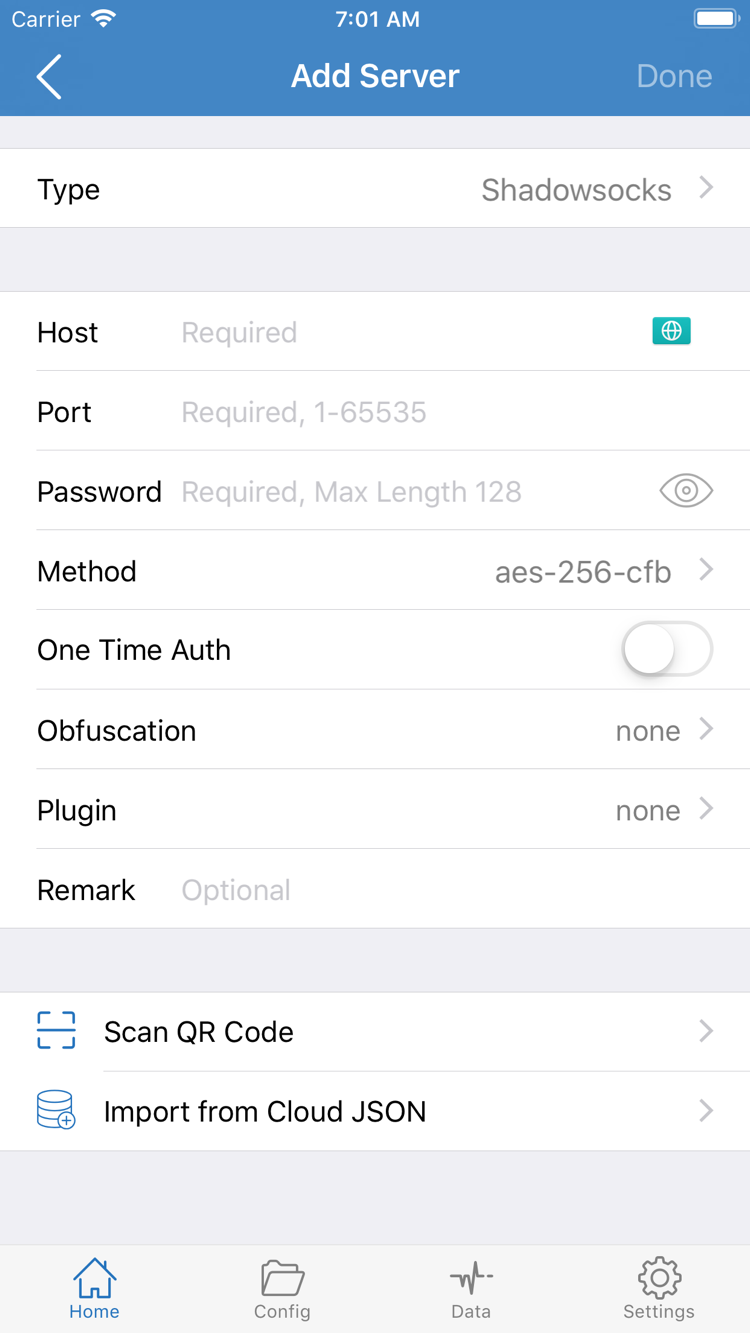
After opening Shadowrocket, stay on Home and leave the connection switch at the top off for now. Have the original details from your service provider ready, then choose the import method that matches them: use Subscribe for a link that returns a server list, or select the matching server Type for details that specify a protocol, address, and authentication parameters. These methods require different inputs. Pasting a subscription link into Host usually won't establish a connection.
If You Have a Subscription Link
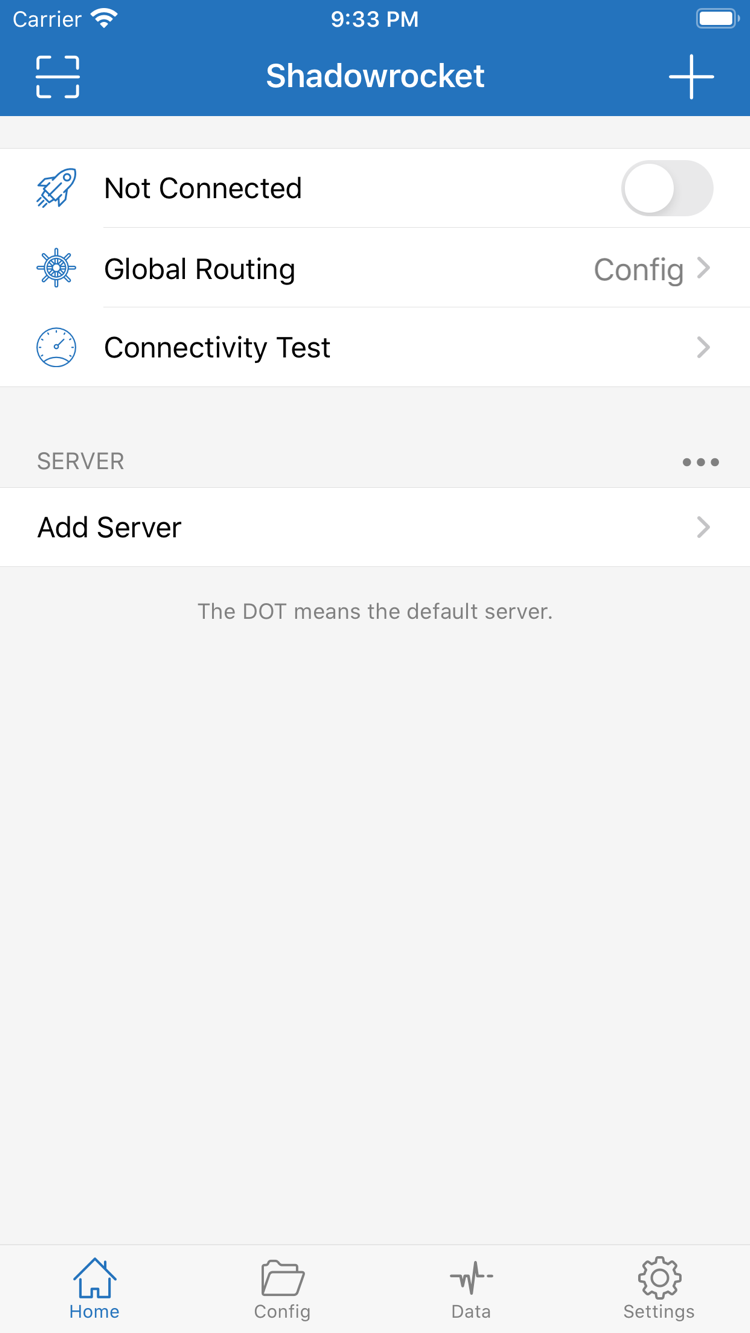
On Home, tap Add Server. On the add screen, open Type and choose Subscribe. Paste the full subscription link into the URL field for that type, save it using the on-screen control, then return to Home and wait for the content to load. If the field already contains text, clear it before pasting so the addresses don't run together. Links may contain credentials, so retain all parameters and check that no spaces, line breaks, or chat text were added at either end.
On Home, check whether the subscription has added entries under SERVER. If the list is populated, select a server to use; there's no need to repeatedly refresh the subscription right away. If it remains empty after saving, check that the link is valid, that the subscription allows access, and that your current network can reach its address. Your service provider can confirm whether the subscription is active. Saving a subscription name alone doesn't mean its servers were imported successfully.
If You Have Details for a Single Server
Open Add Server again and choose the Type that matches the protocol provided by your service provider, then enter Host and Port. Authentication fields vary by protocol. For example, check Password and Method for Shadowsocks; for other protocols, verify the fields they require. Don't reuse fields across different protocols. The official screenshot shows one example; fields vary by Type. Host is usually a server domain name or IP address. Don't append a web page path.
If you have a QR code, use Scan QR Code to import it, then check each field. Import from Cloud JSON is another option; use it only if your source provides the required content. After saving, return to Home and make sure the imported entry is selected. This completes the step of adding connection details to the app. Next, choose how requests should be routed.
STEP 02 / ROUTING
Choose a Global Routing mode
After importing, return to Home and tap Global Routing to see the current selection. The three modes are Config, Proxy, and Direct. They determine how requests are routed; they are not server protocols. Changing this setting won't fix an incorrect password, an expired subscription, or an unreachable server address.
| Mode | What to know before using it |
|---|---|
| Config | Uses the active configuration and its rules to choose a route. Best suited to setups with specific routing requirements. |
| Proxy | Routes requests primarily through the proxy. Use it to check the selected server's connection, while keeping in mind that system and configuration-specific handling may still apply. |
| Direct | Uses a direct connection and can establish a baseline for your current network. It does not test whether the proxy server is working. |
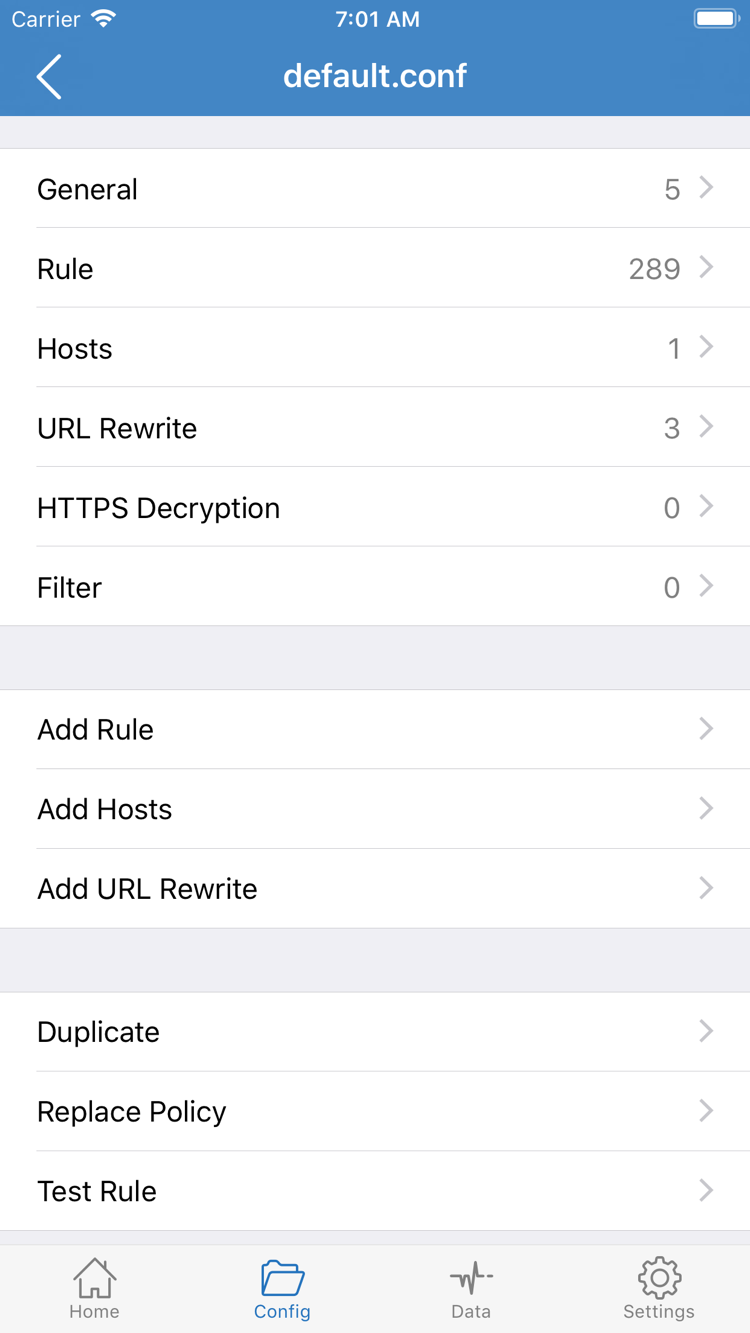
If you have a configuration file from a trusted source, open Config and confirm which file you intend to enable, then review its Rule and policy settings. Subscriptions and configuration files serve different purposes: subscriptions provide server details, while configuration files define how requests are handled. Importing with Subscribe doesn't mean suitable routing rules have been set up automatically.
The official screenshot shows General, Rule, Hosts, URL Rewrite, HTTPS Decryption, and Add Rule on the Config editing screen. You don't need to edit every section for your first connection or enable HTTPS Decryption. Start with settings you understand, and don't change several unrelated options just to get connected. To check whether a server works, temporarily use Proxy, then switch back to Config and review any routing differences.
In Rule, requests are generally matched from top to bottom, and the first matching rule determines the policy. FINAL handles requests that don't match earlier rules. For example, the snippet below sends a sample domain to PROXY and all other requests to DIRECT. It's only an illustration of rule matching, not a complete file to replace your existing configuration or a setup for every use case.
[Rule]
DOMAIN-SUFFIX,example.com,PROXY
FINAL,DIRECT
If your configuration uses policy groups, confirm that the selected option in each group points to a working server. A rule matching PROXY doesn't prove the server itself is available. For more on rule priority, DNS, and configuration sections, see the complete configuration guide. This tutorial keeps the setup clear and repeatable before moving on to the connection steps.
STEP 03 / CONNECT
On Home, turn on the connection switch
After confirming the imported entry and Global Routing mode, return to Home. Select the server you intend to use under SERVER, then turn on the connection switch at the top. Not Connected in the official screenshot indicates that the app wasn't connected when it was captured; it isn't a server name. During setup, check the connection status at the top and the selected entry in the list so you don't accidentally keep using an earlier selection.
The first time you connect, the system may ask you to approve adding a VPN configuration. This authorizes the app to handle traffic through the system network extension; it does not mean you need to buy the app again. Review the app details in the prompt, confirm as required, and authenticate your device. Then return to Shadowrocket and check the status. If you've already approved it, the prompt may not appear on later connections.
If you cancel the authorization prompt, the connection switch may turn off again. Retry the connection and approve the prompt rather than changing the server password. If the device is managed by an organization, its restrictions may prevent adding a VPN configuration; follow the applicable device management rules. A VPN configuration in system settings and a server entry in the app are separate things, and deleting the former won't fix the latter.
Once Home shows that the connection is established, keep the same server and mode for the next test. The status mainly indicates that the local traffic-handling channel is active; it doesn't mean every remote request has succeeded or that every rule in your configuration is behaving as expected. Server authentication, DNS resolution, and responses from destination sites can still fail during subsequent requests.
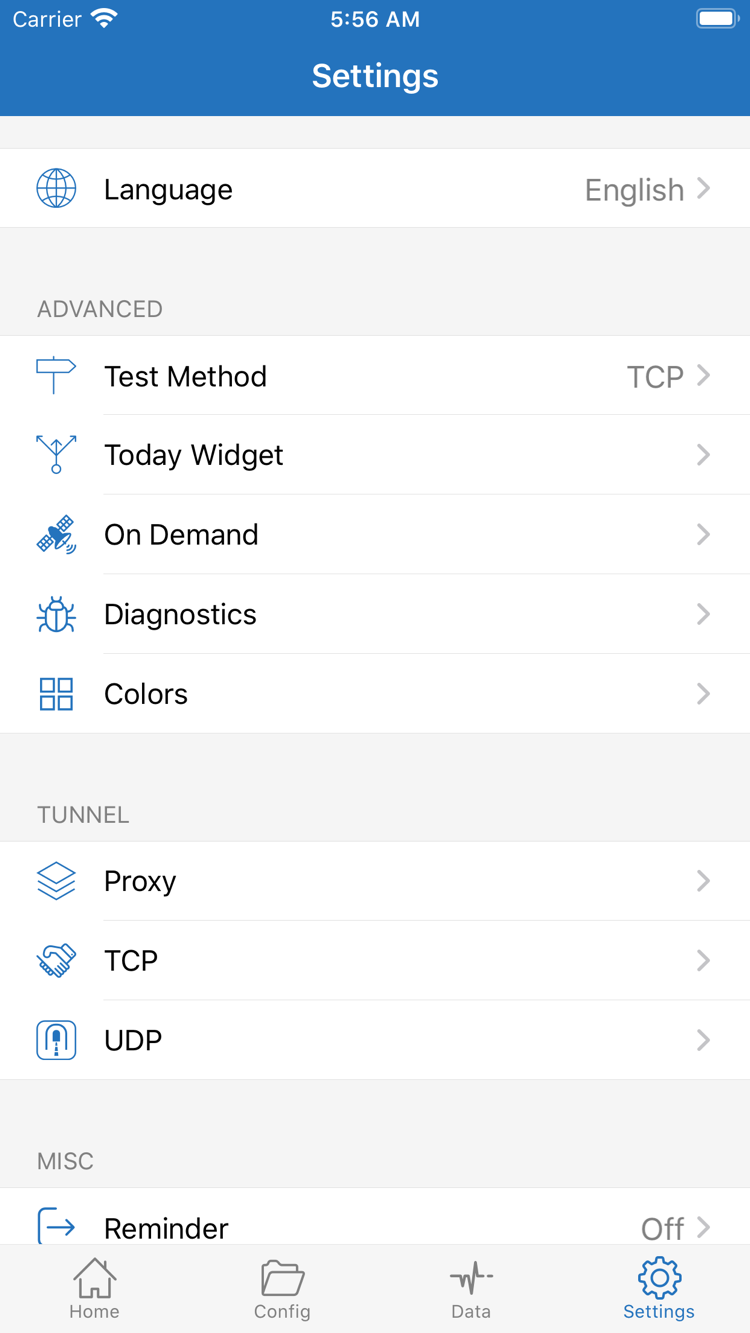
When you're done, return to Home and turn off the switch at the top. If the connection turns back on automatically, check whether On Demand is configured in Settings instead of repeatedly toggling the switch. Keep troubleshooting steps manual and easy to follow; configure automatic connection conditions only after confirming that the basic connection works.
STEP 04 / VERIFY
Check the results with Connectivity Test
Keep the server you just selected and run Connectivity Test on Home, then wait for it to finish. Interpret the result alongside the Test Method in Settings: different methods check different stages. Some only indicate whether a particular network probe received a response, so a single response time doesn't represent the actual speed of every website. If the test fails, consider your real-world access results before concluding that all server functions are unavailable.
Next, open a browser and visit a familiar website that should currently respond. Make a fresh request if possible, and reload the page when needed so you don't mistake cached content for a successful connection. Note whether the page opens, keeps loading, loads with missing resources, or takes a long time on the first visit. Recording what actually happens is more useful than simply noting whether it works.
If you're using Config, check one request expected to use DIRECT and another expected to use the proxy. A website may open because it matched DIRECT, which doesn't confirm that the proxy route works. If access works in Proxy but fails in Config, check the rules and policy groups. To compare, change only Global Routing and keep the server and test destination the same. Restore your intended mode when you're done.
Check Data if you need to see whether traffic is flowing, but treat its statistics as supporting evidence, not proof that a particular rule is correct. One test can't show that every destination, time, or protocol is working. Basic verification means the connection switch stays on, the intended destination is reachable, and the selected mode follows the expected route. If any of these checks fail, troubleshoot by stage below.
STEP 05 / DIAGNOSE
Common Issues and Settings to Check
Start troubleshooting by identifying where the process stops, then change the relevant setting. Don't rebuild the subscription, switch protocols, replace DNS, and rewrite rules all at once. Even if the issue clears, you won't know which change helped. Keep a record of any important configuration and use the same test destination after each change.
The Server Entry Wasn't Imported
If the expected server isn't listed on Home, return to Add Server and check the Type and input. Subscribe requires a subscription link, not your service provider's website login address. Keep all parameters in the link. If the result is empty, authentication fails, or the content can't be parsed, ask your service provider to confirm the link status and response format. The connection switch isn't the priority yet; you first need usable server details.
Entry Added, but Test or Authentication Fails
For manually added details, check Host, Port, Password, and the protocol's Method, TLS, or other required options. Use the details provided by your service provider rather than guessing. An incorrect device date or time can also affect connections that rely on certificate validity. For TLS, verify the server name and certificate details; disabling certificate checks isn't a general fix.
Open Settings and check Test Method to make sure it matches the issue you're investigating. If a probe fails but real-world access works, note the difference instead of repeatedly changing connection settings just to get a test result. Conversely, if a probe gets a response but a page won't load, continue checking DNS, routing, and the destination's response.
The Switch Won't Stay On or the Connection Restarts Automatically
If the switch turns off immediately, first check whether system VPN authorization is complete, whether device management restrictions apply, and whether the app displays an error. If the connection starts again after you turn it off manually, check the On Demand conditions in Settings. You can temporarily disable automatic connection conditions during troubleshooting and try connecting manually again. Restore them afterward if needed; automatic connection behavior and server authentication are separate issues.
Connected, but Some Requests Fail
First compare the results in Proxy and Config. If they differ significantly, check the matching rule, policy group selection, and FINAL fallback in Config. If a domain won't resolve but a direct connection to an address works, check DNS—but a single failed page doesn't prove that DNS is the cause. TCP and UDP may be affected by different factors; consider the target app and the capabilities described by your service provider. Don't switch settings in Settings at random.
If you need more clues, open Diagnostics in Settings and collect information about the error that just occurred. Review diagnostic details before sharing them, and redact subscription links, authentication parameters, and information that could identify your usage. Keep only what's needed to troubleshoot. For details on complex rules, DNS, and configuration sections, see the complete configuration guide. To repeat the basic steps, return to the import section of this tutorial and check each step rather than changing everything at once.